LinkedIn Engagement Tracking Without Sales Navigator
Sales Navigator alerts you when leads post. It doesn't capture who engaged. Here's how to actually track LinkedIn engagement, free and paid.
Sales Navigator tells you when saved leads post. It does not capture who liked or commented on those posts, export the engagers, remember who engaged twice, enrich them, or score them against your ICP.
That is the gap most teams discover after paying for a seat. The alert is useful, but it is not engagement tracking. This guide defines what LinkedIn engagement tracking actually means, gives you a free manual system that works at small scale, compares the tool categories, and explains when Sales Navigator is still worth keeping.
What Sales Navigator Actually Does (and the Gap)
Sales Navigator is a strong LinkedIn research product. It gives sales teams richer lead and account search, saved searches, lead lists, account lists, alerts, relationship views, InMail, and CRM-connected workflows on higher plans.
That job matters. If you need to find VPs of Sales in SaaS companies with 51-200 employees, build named lead lists, save account searches, or watch job changes across target accounts, Sales Navigator is often the cleanest official surface LinkedIn gives you.
LinkedIn's own Sales Navigator materials describe alerts as a way to stay informed when saved leads and accounts take important actions, including recent posts and job changes. Its current pricing page lists Sales Navigator Core from $119.99 per month or $1,079.88 per year per license, with Advanced from $159.99 per month or $1,799.88 per year per license.
The problem is not what Sales Navigator does. The problem is the workflow people assume it does.
Sales Navigator can tell you that a saved lead posted. It does not turn that post into a lead source. The alert points you to the post, then the workflow stops. If 143 people liked the post and 27 people commented, Sales Navigator does not capture those people into a table, dedupe them, preserve the source post, find work emails, or route high-fit engagers to your CRM.
That is the precise gap: Sales Nav hands you the post, not the audience of the post.
The useful output looks more like a lead table than an alert feed: profile, company, action, source post, repeat engagement, email status, ICP score, and next route.
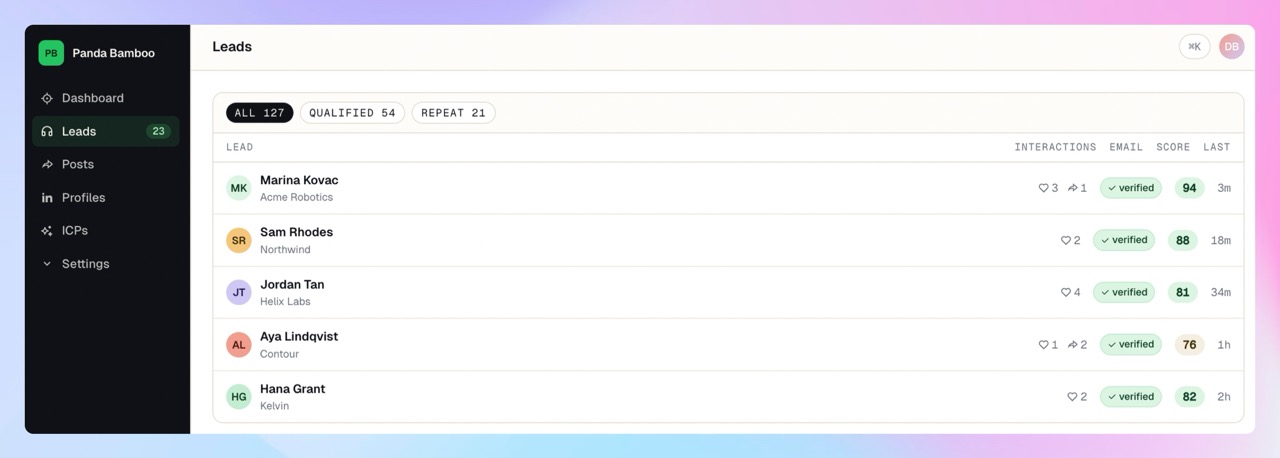
If you bought Sales Navigator hoping it would show you everyone engaging with your market, you are not missing a hidden export button. LinkedIn says Sales Navigator does not offer a standard CSV or XLS export for account and lead information, and engagement capture is even further outside the product's native workflow. You are asking Sales Navigator to do a different job.
What Engagement Tracking Actually Means
LinkedIn engagement tracking means watching a defined set of profiles, capturing every liker and commenter on their posts, keeping the history so repeat engagers surface, scoring those engagers against your ICP, and routing the qualified ones to sales or outbound.
The tracked profiles might be your founder, your sales team, competitors, partner executives, customers, analysts, or category creators. The point is not to monitor all of LinkedIn. The point is to monitor the people whose posts attract your buyers.
This post is not about analytics on your own posts' performance. Impressions, follower growth, average engagement rate, and content reporting are a different job. Here, the output is a person-level lead list: who engaged, what they engaged with, whether they fit, and what should happen next.
The Free Manual System
Manual engagement tracking is worth doing before you buy anything. It teaches you which profiles attract useful buyers, which posts generate noise, and what a good signal looks like in your category.
The key is to make it a real system. Do not rely on screenshots, saved posts, or memory.
Set Up the Tracking Sheet
Create a spreadsheet with these columns:
| Column | What to store |
| Tracked profile | The person or page whose post you are watching |
| Post URL | The actual LinkedIn post URL |
| Post date | When the post was published |
| Post topic | Short note like "deliverability", "pricing", or "hiring SDRs" |
| Engager name | The person who liked or commented |
| Engager profile URL | Their LinkedIn profile URL |
| Action | Like or comment |
| Date captured | When you added the row |
Use one row per engager. If the same person likes two posts, they should appear twice at first. You can dedupe later, but the repeated source history is the signal.
The Weekly Pass
Pick 5 to 10 profiles your buyers already follow. Good starting points are competitor founders, category creators, partner voices, customer champions, and operators who regularly post about your problem space.
Once a week, open their recent posts. Skip broad motivational posts and hiring announcements unless those consistently attract your market. Focus on posts about pain points, workflows, competitors, budgets, integrations, compliance, or category change.
For each relevant post, open the reaction list and comment thread. Log new likers and commenters into the sheet with the source post attached. For reactions, use the modal workflow from the guide on how to find who liked a LinkedIn post. For comments, switch LinkedIn's comment sort to "Most recent" before you start copying names.
Do not enrich every profile during the capture pass. First capture durable identifiers: name, LinkedIn URL, action, source post. Then do a second pass for company, title, email, and fit. Mixing capture and qualification is how people lose their place and quit.
Where It Breaks
The math is the problem.
Ten tracked profiles posting three times a week gives you 30 posts. If each decent post has 100 visible engagers, that is 3,000 rows a month before dedupe. Add comments, repeat engagers, company lookups, email finding, verification, ICP scoring, and CRM import, and the "free" system becomes a recurring ops job.
Most teams do not quit because they lack discipline. They quit because the volume is wrong for a manual workflow. A spreadsheet is fine for proving the signal. It is not a durable operating system for a sales team.
Tools Compared: Three Categories
The tools in this market are often described as if they do the same thing. They do not. Some are signal platforms, some are browser automations, and some are session-free tracking systems built around public engagement.
| Category | Tracks profiles continuously | Captures likers and commenters | Enrichment and email included | ICP scoring | CRM routing | Account risk | Cost model |
| Signal platforms | Usually | Usually, check coverage | Often available through credits or workflows | Sometimes | Usually through integrations | Lower if no session automation | Subscription plus credits |
| Extensions and automations | Usually no, often one post at a time | Yes, from your session | Usually separate | Manual or downstream | CSV or separate automation | Higher when acting inside your account | Monthly tool plus enrichment |
| Session-free tracking | Yes | Yes, for tracked public posts | Built into focused tools | Built in when sales-focused | CSV, CRM, or outbound routing | No automation from your LinkedIn seat | Credits or subscription |
Signal Platforms
Signal platforms such as Trigify and adjacent tools are built to surface buying signals across LinkedIn and other channels. They can be strong if you want a broader signal layer, workflow builder, API, or enrichment actions beyond one LinkedIn use case.
The detail to watch is cost math. A credit can mean a search result, an engagement lookup, a person enrichment run, an email enrichment run, or another workflow action depending on the platform. That makes the real unit "qualified lead produced", not "credit purchased." For a deeper comparison, read the best Trigify alternatives and the full Linked Panda vs Trigify comparison.
Extensions and Automations
Extensions, cloud scrapers, and DIY automations act inside or alongside your LinkedIn account. They can export visible people from one post quickly, which is why they are popular for one-off jobs.
The tradeoff is account risk and maintenance. If a tool uses your session, cookie, browser context, or automated click patterns, LinkedIn can associate that behavior with your seat. Some teams accept that. Others avoid it because the account belongs to a founder, top seller, recruiter, or executive who cannot afford a restriction.
If you are evaluating that route, start with the best PhantomBuster alternatives, because the same session-cookie and automation tradeoffs show up across the category.
Session-Free Tracking
Session-free tracking captures visible engagement from public posts without logging into your LinkedIn account, installing a browser extension, or clicking around from your session.
That shape is more conservative for teams that care about account safety. It also fits the actual engagement-tracking workflow better. Instead of asking a rep to pick one post, export one modal, clean one CSV, and enrich rows somewhere else, the system watches tracked profiles continuously and builds the history in the background.
The output is not a scrape. It is a lead source with source context.
The Linked Panda System
Linked Panda is the automated version of the manual sheet.
You add the profiles whose posts attract your buyers: your team, competitors, partners, customers, or category voices. Panda watches their public posts, captures every visible like and comment, stores the source post, and preserves comment text where available.
Every new profile is enriched with B2B context: current role, company, company domain, location, and verified work email when one is found. Then the profile is scored against your ICP with reason codes, so reps see why someone is a fit instead of receiving a raw engagement dump.
From there, qualified leads can be routed to CRM or exported to CSV. Low-fit engagers stay out of the rep queue. Repeat engagers surface because the history is kept, not overwritten.
The pricing frame matters if you are comparing this to a Sales Navigator seat. Sales Navigator Core currently starts at $1,079.88 per year per license when billed annually. It is useful for discovery, but it does not do this engagement-capture job. Linked Panda pay-as-you-go starts with a $10 top-up. At one credit per new profile and one additional credit when a verified email is found, that is roughly 100 profiles end to end if every profile gets an email.
That makes the first test small: track a few profiles, run the engagement through enrichment and scoring, and decide whether the signal deserves a full campaign.
Start with $10 in Linked Panda credits and test the workflow on the posts your buyers already read.
When Sales Navigator Is Still Worth Keeping
Sales Navigator is still worth keeping when you use it for the job it is good at: discovery.
The search filters are genuinely useful. Lead lists and account lists are useful. Saved searches are useful. Job-change alerts, account updates, lead activity alerts, and InMail can all support a real sales workflow. Nothing else fully replicates LinkedIn's own graph inside LinkedIn's own interface.
The clean split is this: use Sales Navigator for discovery, and use engagement tracking for timing.
Sales Navigator helps answer, "Which accounts and people should we care about?" Engagement tracking answers, "Who is paying attention right now, and which of those people fit our ICP?"
Keep both if budget allows and the workflows are distinct. Drop the Sales Navigator seat only if you were paying for it mainly because you hoped it would capture engagers, enrich them, and route them. That is not what it is built to do.
Related Workflows
If you are building LinkedIn engagement into a repeatable sales motion, these guides connect the pieces:
- Track competitor LinkedIn engagement when competitor audiences are your highest-signal source.
- Find everyone who liked a LinkedIn post when you need the native reaction-list workflow.
- Enrich LinkedIn data before routing when profile URLs need to become usable lead records.
- Find work emails for LinkedIn post engagers when you already have the profiles but need verified contact data.
FAQ
Does Sales Navigator show who liked or commented on a post?
No. Sales Navigator can alert you when saved leads post, and you can open the post manually like any LinkedIn member. It does not provide native engager capture, export, enrichment, or engagement history.
Can I track engagement on competitor posts?
Yes. Engagement on public posts is visible to viewers, which makes competitor audiences one of the best lead sources on LinkedIn. We wrote a full guide to tracking competitor LinkedIn engagement.
Is engagement tracking against LinkedIn's terms?
Automating actions inside your own account is the behavior most likely to violate LinkedIn rules and trigger restrictions. Tracking public engagement without automating your session is the more conservative approach. This is not legal advice, so read the terms and decide your own tolerance.
How is this different from social listening tools?
Social listening watches keywords, mentions, and trends across platforms. Engagement tracking watches specific profiles and captures the individual people who liked or commented, so the output is a lead list rather than a sentiment chart.
How many profiles should I track?
Start with 5 to 10 profiles that your actual buyers follow. More profiles create more volume, but not always better fit. It is better to track a few high-signal profiles and qualify hard than to track fifty and drown in noise.
Do I need Sales Navigator at all for this?
No. Engagement tracking works from public posts. Sales Navigator remains useful for discovery: finding accounts, leads, and profiles worth tracking in the first place.