How to See Who Liked a LinkedIn Post in 2026
Open the reaction list, filter LinkedIn likes, and turn post engagement into a clean lead list without risky browser extensions or account automation.
The 30-second answer for one post: open the post, click the reaction count, scroll the list. You're done.
The 30-second answer is also where most articles on this topic stop, which is fine if you're doing this once out of curiosity. It's not fine if you're a sales rep, recruiter, or RevOps lead trying to do it for fifty competitor posts a month.
So this post does both. The clean steps for the manual route, then a practical comparison of the tools that automate it — including the two that will get a LinkedIn account suspended if you're not careful about how you use them.
Quick Answer: How Do You Find Who Liked a LinkedIn Post?
To find who liked a LinkedIn post:
- Open the post on LinkedIn (not the feed preview — the actual post URL).
- Find the reaction count under the post body.
- Click the count, or click the cluster of reaction emojis next to it.
- LinkedIn opens a modal with the people and Pages who reacted.
- Use the tabs at the top of the modal to filter by specific reaction type.
That's it natively. LinkedIn now groups Likes alongside Celebrate, Support, Love, Insightful, and Funny. When most people search "who liked," they really mean "who reacted," and the modal covers both — the filter tabs are how you isolate true Likes if you need to.
The Manual Way (Three Steps, About Five Minutes per Post)
1. Open the actual post URL
Don't try to do this from your feed. Click into the post itself so it opens at its own URL — you'll need that URL later if you ever want to share the lead source with a teammate, attach it to a CRM record, or come back to compare engagement over time.
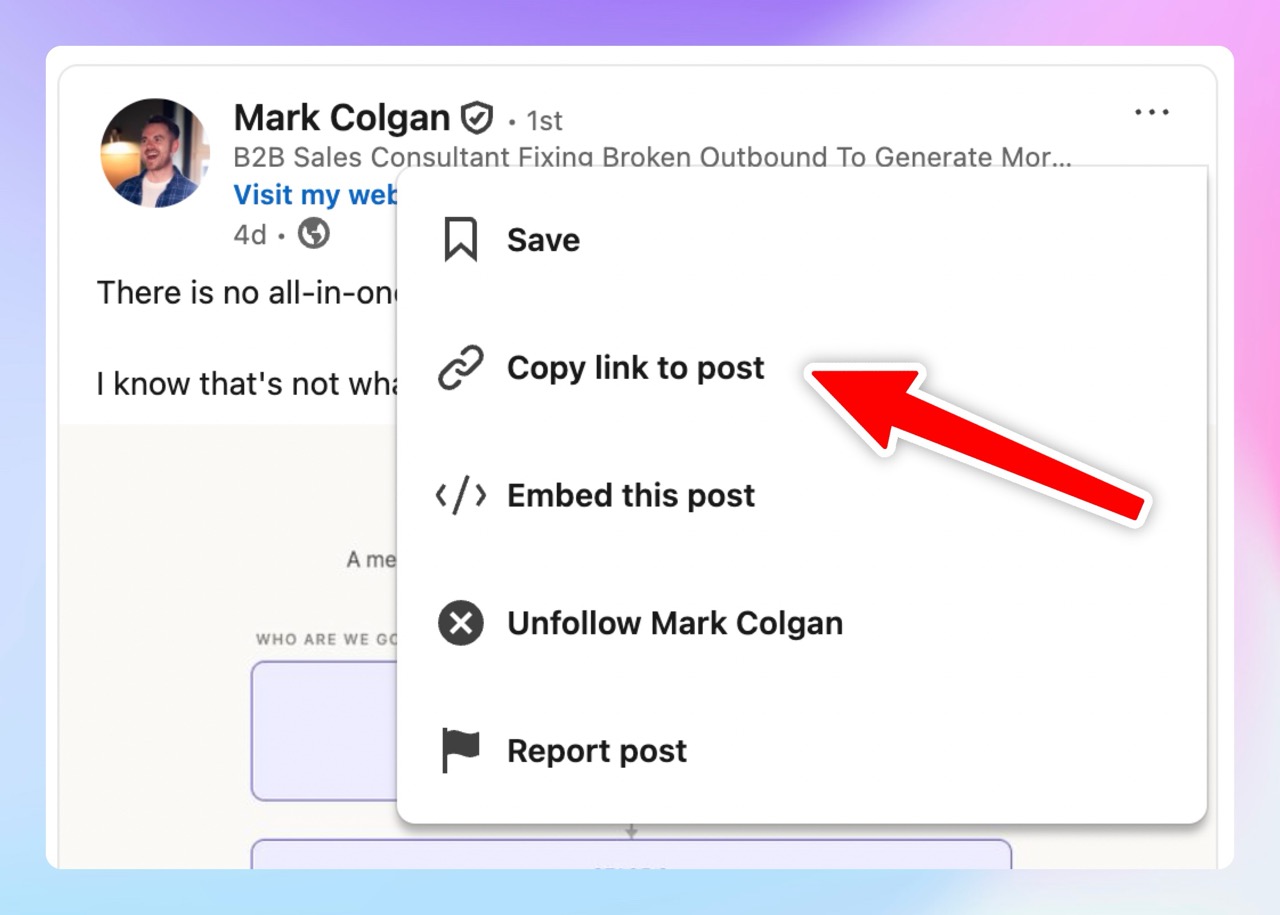
If it's your own post, your notification stream will work too — but it gets unreliable past 25–30 reactions, and notifications expire. The post URL is the only source of truth.
2. Click the reaction count
Below the post body, between the text and the comment row, you'll see a small cluster of reaction emojis with a number next to them. Click the number.
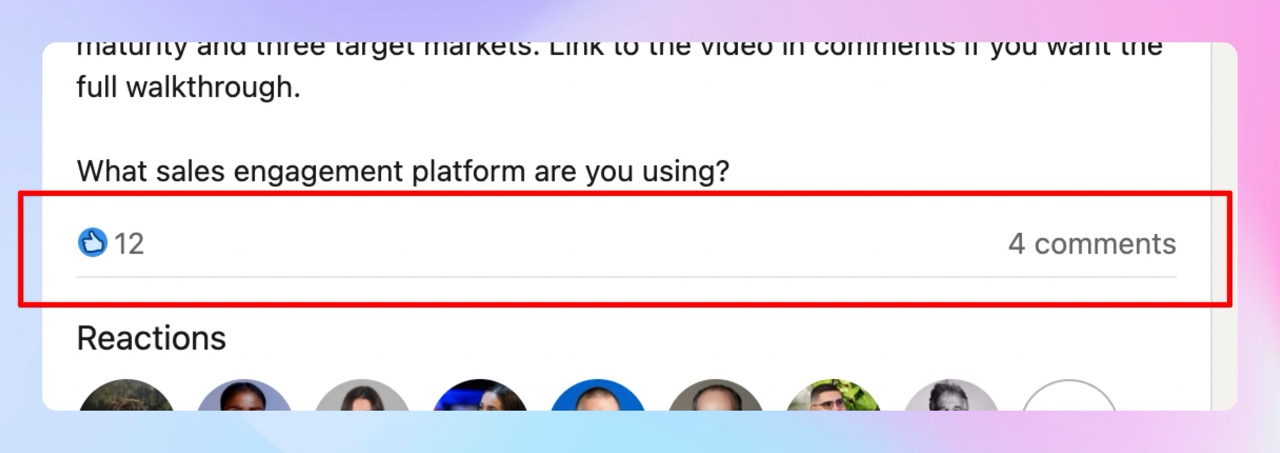
A modal pops up. Tabs at the top let you filter by reaction type — that's the closest LinkedIn comes to giving you a "people who actually clicked Like" view, as opposed to the full reaction set.
3. Open promising profiles in new tabs
Middle-click each name (or right-click → "Open in new tab") so they load in the background while you keep scrolling the modal. Look for current title, current company, location, and recent activity. Decide if they're worth a connection request, a follow-up, or outreach.
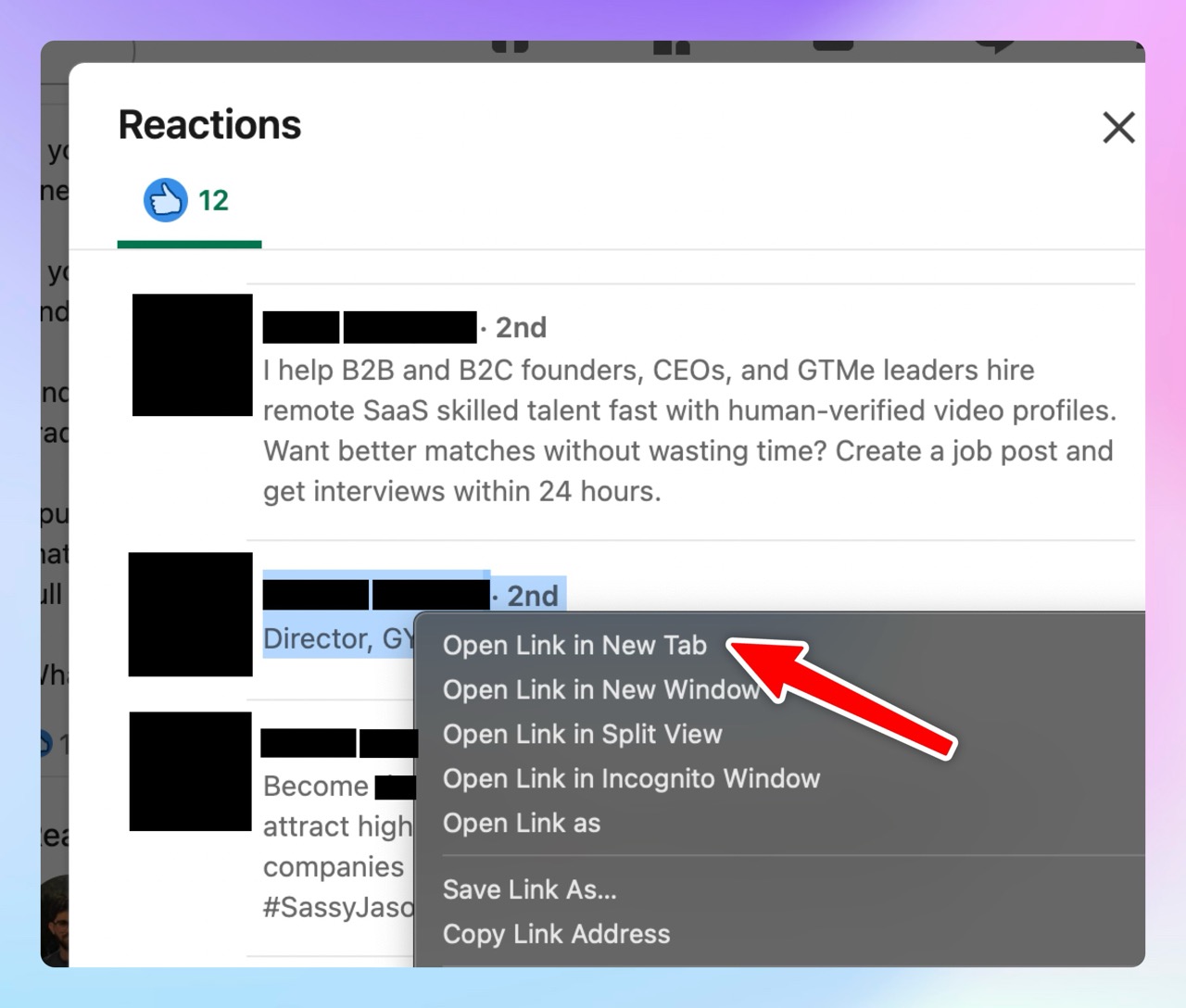
For one post with thirty reactions, this takes about five minutes. It's perfectly fine.
Doing This for 100+ Likers? Don't.
This is the part most articles bury, so I'll put it up here: the five-minute math falls apart fast.
A typical competitor post worth scraping has 200–800 reactions. Time-boxed manually — open profile, scan headline, copy URL, paste into a sheet, find an email through a separate tool, decide ICP fit — that's 45–75 seconds per liker once you've built the rhythm. Run that math on 400 likers and you've burned six to eight hours on a single post. Multiply by ten posts a month and it's a part-time job.
That's the real reason this query has the search volume it does. People don't ask "how to find who liked a LinkedIn post" because they're curious. They ask because they tried it once at scale and it broke them.
If you're in that position, the rest of this post is for you.
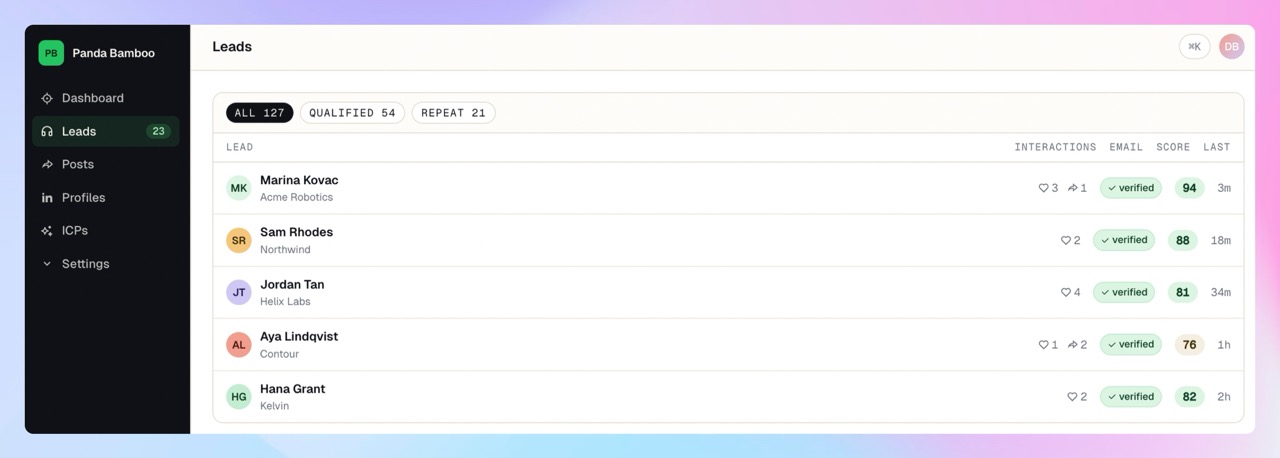
Linked Panda was built specifically for this workflow. Track the profiles whose posts attract your buyers, capture every like and comment automatically, enrich the engagers with verified work emails, score them against your ICP, and route the high-fit ones to your CRM. No Chrome extension acting inside your LinkedIn account. No headless automations clicking on your behalf. Compliant from day one.
If you'd rather try it than read about it: top up $10 in pay-as-you-go credits — no card on file, no subscription, credits never expire. That's enough to scrape and qualify roughly 100 profiles end-to-end and decide whether the workflow is worth a real subscription.
Tools That Automate This (and the Real Trade-offs)
There are roughly five categories of tool people use to extract LinkedIn post engagement. They're not interchangeable, and the trade-offs are bigger than the marketing pages let on.
| Tool | How it works | Ban risk | Time per 100 likers | Enrichment | ICP scoring | Pricing |
| Manual (browser) | You click | None | 75–120 min | None | Manual | Free |
| Phantombuster | Cloud automation acting on your account | High — documented suspensions | ~10 min | Add-on | None | $69+/mo |
| Dux-Soup | Chrome extension driving clicks in your tab | Medium — flagged behavior patterns | ~15 min | Limited | Tags only | $15+/mo |
| Common Room | Hybrid: extension + community-tracking platform | Medium for the extension | ~10 min | Yes | Yes | Custom (mid-market) |
| Trigify | Hybrid: extension + tracker | Medium | ~10 min | Yes | Basic | $69+/mo |
| Linked Panda | Listening service, no LinkedIn account access | None — never acts on your behalf | ~2 min | Verified emails included | Built-in | $10 PAYG, plans from $74/mo |
A few notes on this table, because the trade-offs are not settled.
Phantombuster is the most powerful and the most dangerous option. Their automations literally log into your LinkedIn session and click on your behalf — fast, prolific, and exactly the behavior pattern LinkedIn's anti-automation systems are tuned to catch. The Reddit threads on r/LinkedInLounge from the last two years are split between restored-account stories and not-restored-account stories. If you're going to use it, run a burner account, never your main one.
Dux-Soup runs as a Chrome extension that drives clicks inside your real tab, which is genuinely lower risk than Phantombuster's headless approach. But LinkedIn now detects extension-driven activity patterns too, and we've seen accounts soft-restricted (search rate-limited, profile views capped) within thirty days of heavy Dux usage.
Common Room is the closest peer for community-led growth teams. Its real strength is breadth — it covers Slack, GitHub, Reddit, and Discord on top of LinkedIn — so if your motion is community-first rather than competitor-listening, Common Room is probably a better shape for you. The LinkedIn capture still relies on a Chrome extension, though, and the same browser-extension risk applies.
Trigify is the most direct shape comparison to Linked Panda — same "track engagement, enrich engagers" pitch. Their differentiator has historically been creator-side analytics; ours is the credit-based pricing (1 credit per profile, 1 per verified email, automatic refunds when our enrichment misses) and the architectural choice that we never act inside your LinkedIn account.
Linked Panda runs as a listening service. We never log into your LinkedIn session, we don't ship a Chrome extension, and we don't act on your behalf inside the platform. We use official data sources for what's publicly visible and verified enrichment providers for emails. If your founder, head of sales, or top SDR has ever lost a LinkedIn account to a "growth tool," you'll understand why we built it this way.
Why "Compliant" Is the Quiet Killer Feature
Most posts about LinkedIn engagement tools won't tell you this directly, so I will: half the tools in the table above are one LinkedIn policy update away from breaking, and your account is the collateral.
The pattern is depressingly consistent. A vendor ships a Chrome extension or a headless automation. It works for 8–18 months. LinkedIn rolls out new behavioral detection. Accounts get warned, then restricted, then suspended. The vendor blames "an isolated incident" and adjusts their browser fingerprint. The user is left rebuilding their network.
If you're a founder who posts on your own profile, an SDR with three years of saved searches, or a recruiter with seven thousand connections, that risk isn't worth a 10× faster scraping flow. The cost-of-failure is your professional surface area, not just a tool subscription.
This is the actual reason Linked Panda exists in its current form. Tracking is server-side. Enrichment is contracted from compliant providers. Your LinkedIn account never touches our infrastructure, because there's nothing it could touch. If LinkedIn changes their terms tomorrow, our service keeps running and your account keeps standing.
Slower? Yes, marginally. We don't move at "fake clicks as fast as the API allows" speed. We move at "publicly visible engagement, picked up as it happens" speed. For B2B sales, that's actually the right speed — you want to reach out within 24 hours of someone showing interest, not within 24 seconds. The latter is creepy. The former is timely.
From Likes to Pipeline: The Workflow That Actually Closes
Capturing likes isn't the goal. Booking meetings is. The middle is where most teams fall apart, whether they're using a tool or doing it by hand.
Here's the four-step workflow we recommend either way:
1. Track the right profiles, not all of them. A like on a viral motivational post is noise. A like on a tactical post about a problem your product solves is signal. Pick 5–15 profiles whose posts attract your buyers — your founder, your top reps, two or three competitors, two or three category influencers, a customer or two. Skip the celebrity executives whose engagement is pure broad-market noise.
If you want this on autopilot, LinkedIn listening is the feature that does it.
2. Capture likes and comments. Comments look like stronger intent, and at the top end they are. They take more care to triage than likes, but they also carry more context. We track both actions deliberately and use enrichment plus ICP scoring to separate likely buyers from peers, recruiters, and noise.
3. Enrich before you qualify. A LinkedIn profile URL is a starting point, not a record. You need company domain, current role, seniority, location, and (where compliant) a verified work email. Lead enrichment is what turns a raw liker into something a CRM can actually act on.
4. Score against your ICP, then route. Not every like is a lead. Some are students, peers, vendors, or people from countries you don't sell into. ICP scoring is the filter that decides whether the engager is worth your sales team's time. The high-fit ones get pushed via CRM export. The rest get parked.
Done well, this turns a 400-reaction post into 20–40 qualified leads with real context — "they liked your CEO's post about onboarding deliverability" — instead of 400 cold strangers.
When LinkedIn Won't Show You the Full List
Sometimes the modal is missing names you'd expect to see. Common reasons, in rough order of frequency:
- Group posts and audience-restricted posts. If the audience isn't fully public, you only see the slice you have access to.
- Pages versus people. Pages can react too, and they show up in the same modal — easy to miscount as a person.
- Removed reactions. People un-like more often than you'd think; the count and the visible list desync briefly.
- Boosted posts and ads. Sponsored content has its own analytics surface, and the public reaction list often won't match the impression numbers.
- Privacy settings. Some members hide activity from non-connections or restrict who can see their reactions.
This is normal LinkedIn behavior, not a tool problem. Build your workflow to handle missing names gracefully rather than fighting for completeness — chasing the last 10% almost never pays back the time.
Related LinkedIn Engagement Workflows
If you are building this into a repeatable sales motion, the liker list is only the first step. These adjacent workflows help turn the raw engagement into something sales can actually use:
- Track competitor LinkedIn engagement when you want a weekly source of buyers already paying attention to alternatives.
- Find work emails for LinkedIn post engagers once you have profile URLs but need verified contact data before routing to outbound.
- Build an ICP from LinkedIn profiles if your team is still deciding which titles, company types, and buying signals should count as high fit.
- View a sample lead drop to see how source context, enrichment, ICP scoring, and next actions should look before they hit a CRM.
FAQ
Can you see who liked someone else's LinkedIn post?
Yes, in most cases. Open the public post, click the reaction count, and LinkedIn shows the visible reaction list with names, headlines, and connection degree. Private posts, group-restricted posts, deleted profiles, and some boosted ads will show only a count rather than the full list.
Can you export everyone who liked a LinkedIn post?
Not natively. LinkedIn doesn't offer a CSV export of post reactions for regular members. To export a liker list, you need either a manual workflow (open each profile, copy into a sheet) or a tool like Linked Panda that captures likes server-side, enriches the engagers, and pushes them to your CRM. Avoid Chrome-extension scrapers — they put your account at real, documented risk.
Are LinkedIn likes good sales signals?
Sometimes. A like on a niche, problem-focused post by a tracked profile is a strong topical signal — the engager raised their hand on a specific issue. A like on a viral motivational post is almost worthless. The quality of the source post matters far more than the engagement count.
Will using a LinkedIn scraper get me banned?
It depends on the tool. Browser extensions and headless automations that act inside your LinkedIn session — Phantombuster, Dux-Soup, and most "growth hacks" — have well-documented suspension cases. Listening services that never access your account, like Linked Panda, don't carry that risk because LinkedIn has nothing to detect on your side.
Can people see when I like a LinkedIn post?
Yes. Reactions are public by default. Your name appears in the post's reaction modal, the author gets a notification, and your activity may surface in your network's feeds. Treat every like as a public professional signal — it is one.
How long does it take to qualify 100 likers manually?
Roughly 75–120 minutes with sustained focus. That includes opening the profile, scanning the headline, copying the URL, pasting into a sheet, finding an email through a separate tool, and deciding ICP fit. Most teams stop tracking competitor posts within three weeks of starting a manual process, because the qualification step — not the capture — is the real bottleneck.
The Practical Takeaway
If you only need to inspect one LinkedIn post, the answer is a click. Open the post, click the reaction count, you're done.
If you need this as a repeatable lead source — every week, every competitor, every relevant post — the manual workflow won't survive contact with reality. Pick a tool. Pick one that doesn't put your account at risk. Make sure it covers all four steps: tracking, enrichment, ICP scoring, CRM routing — not just capture.
That's exactly what Linked Panda does. Top up $10 in pay-as-you-go credits — no card on file, no subscription, credits never expire — and run it end-to-end on a real post you care about. If it works, the $10 rolls into your first real campaign. If it doesn't, you're out ten dollars.